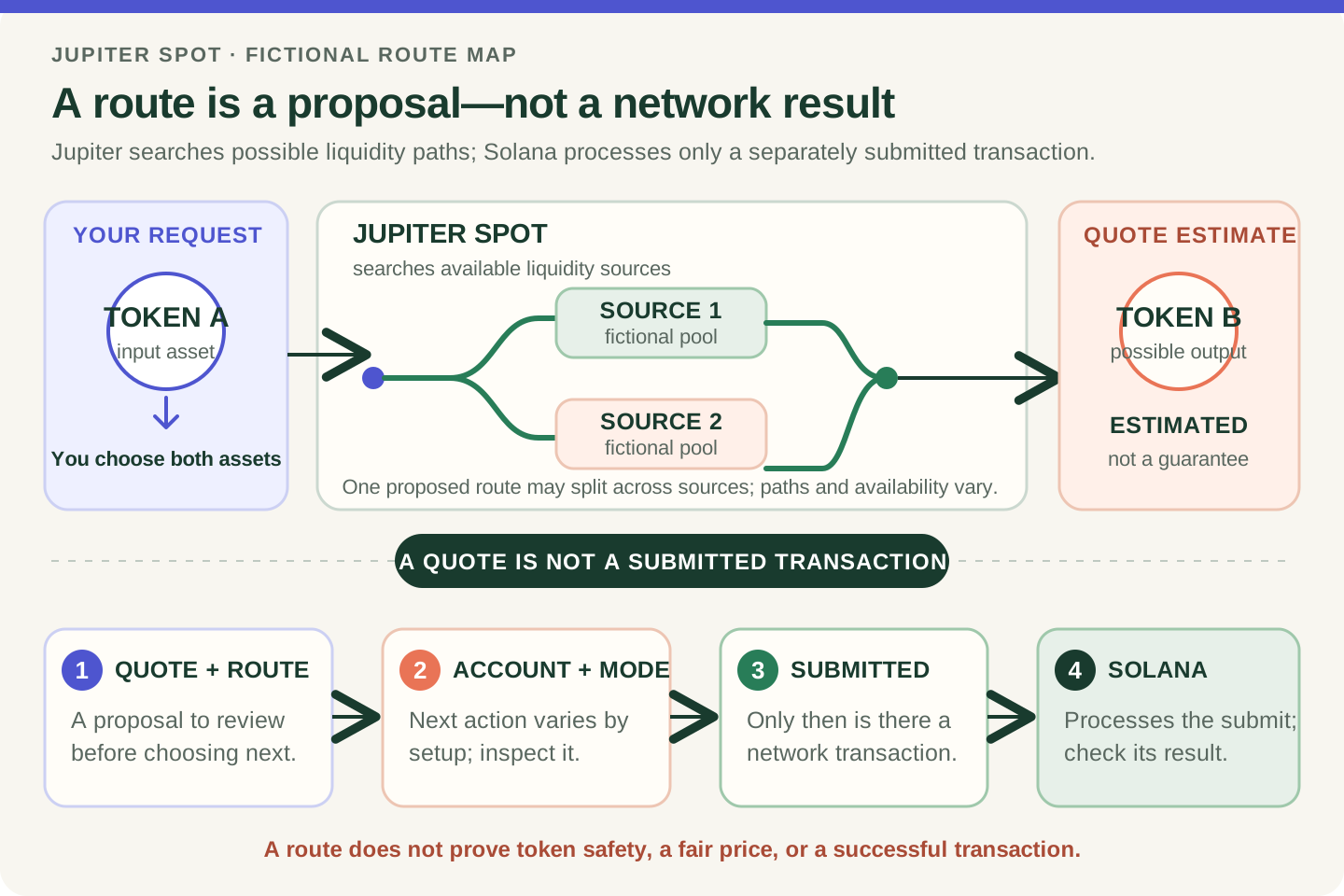
This guide is educational, not personalized financial, legal or security advice. A checklist reduces avoidable mistakes; it cannot make a transaction risk-free.
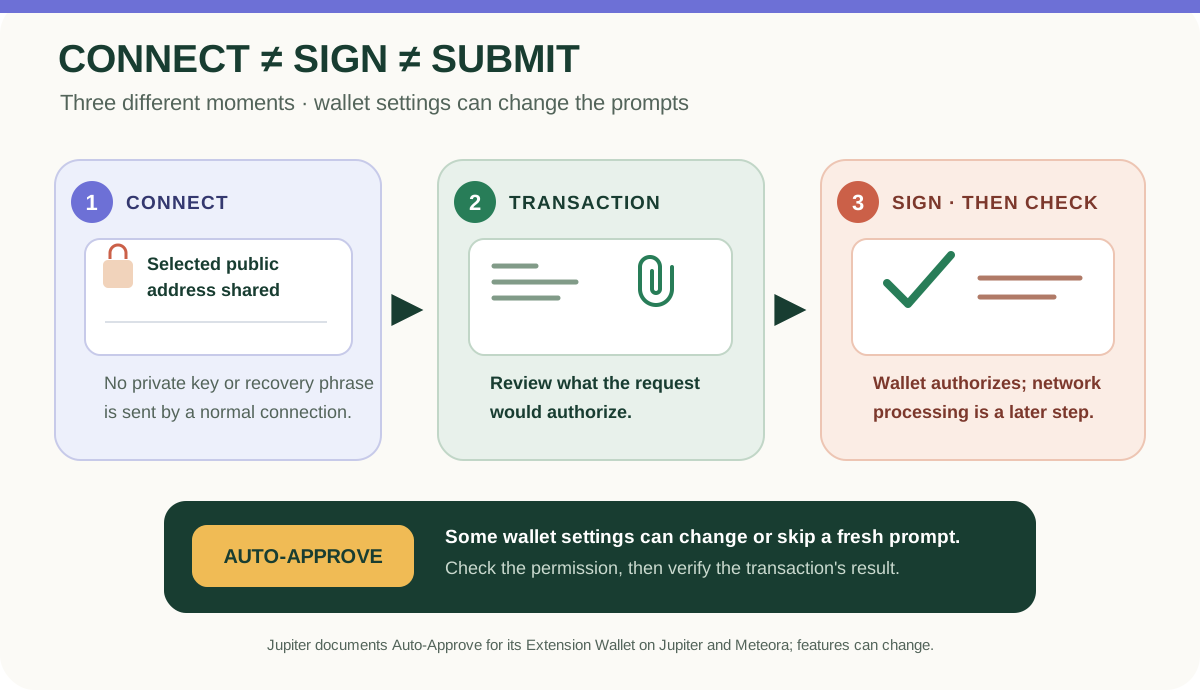
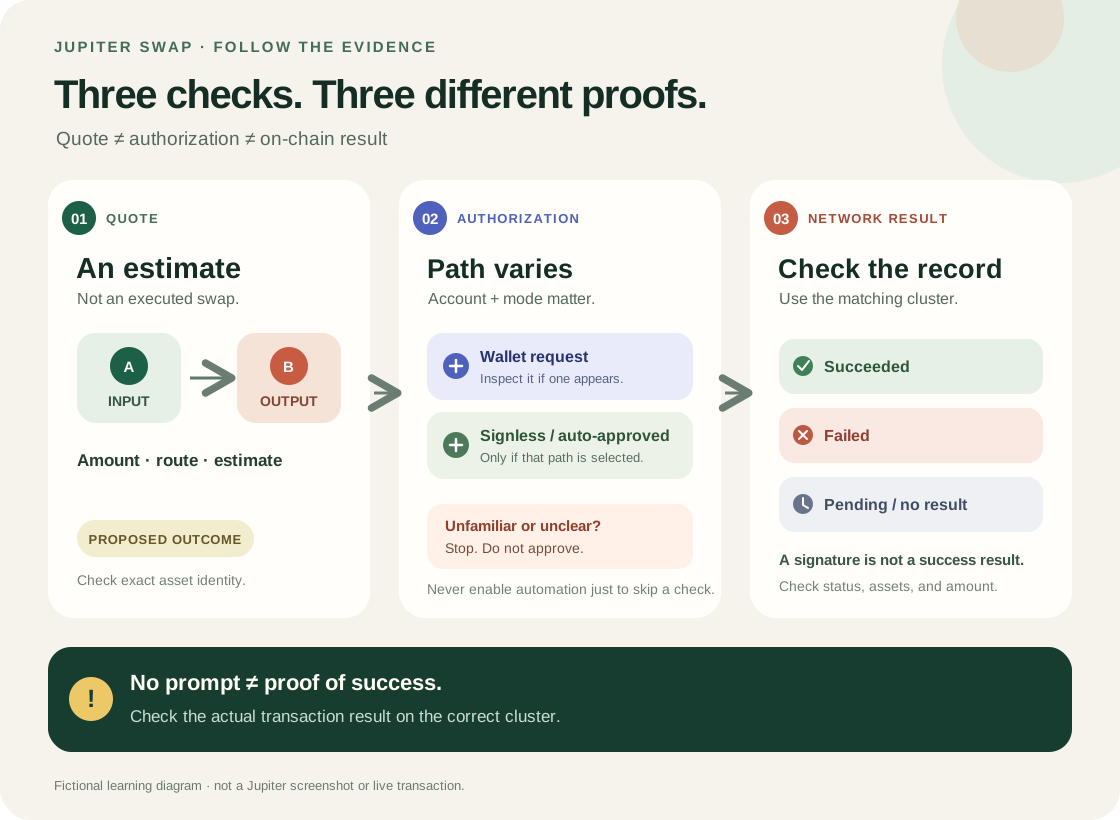
Connection, transaction authorization, submission and network outcome are separate. Jupiter documents Auto-Approve for its Extension Wallet on Jupiter and Meteora; settings and interfaces can change.
- A connection may share the selected public address; it does not share the private key or recovery phrase.
- A later app action can ask the wallet to authorize a transaction; inspect the domain and what the request would do.
- Some wallet settings can change or automate prompts. Jupiter currently documents Auto-Approve for its Extension Wallet on Jupiter and Meteora.
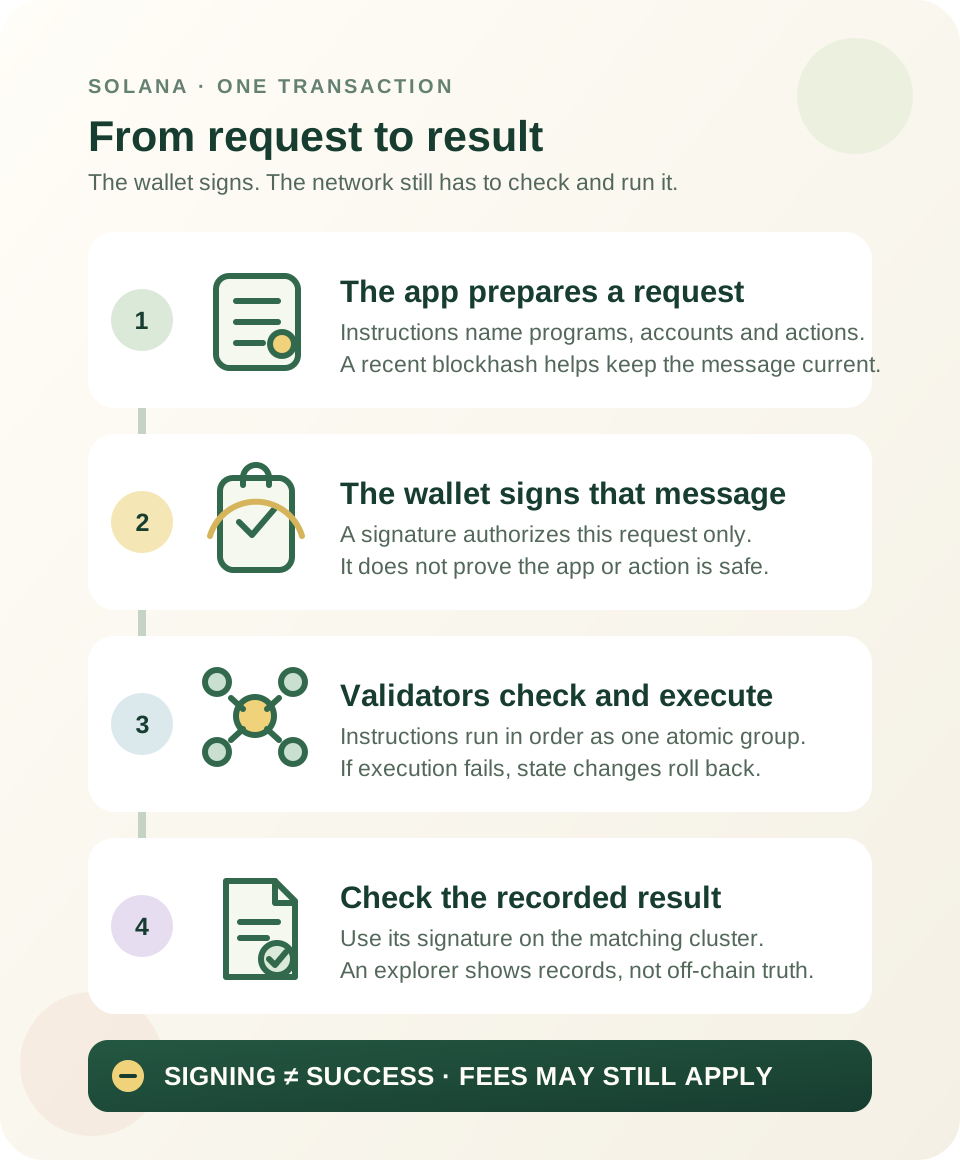
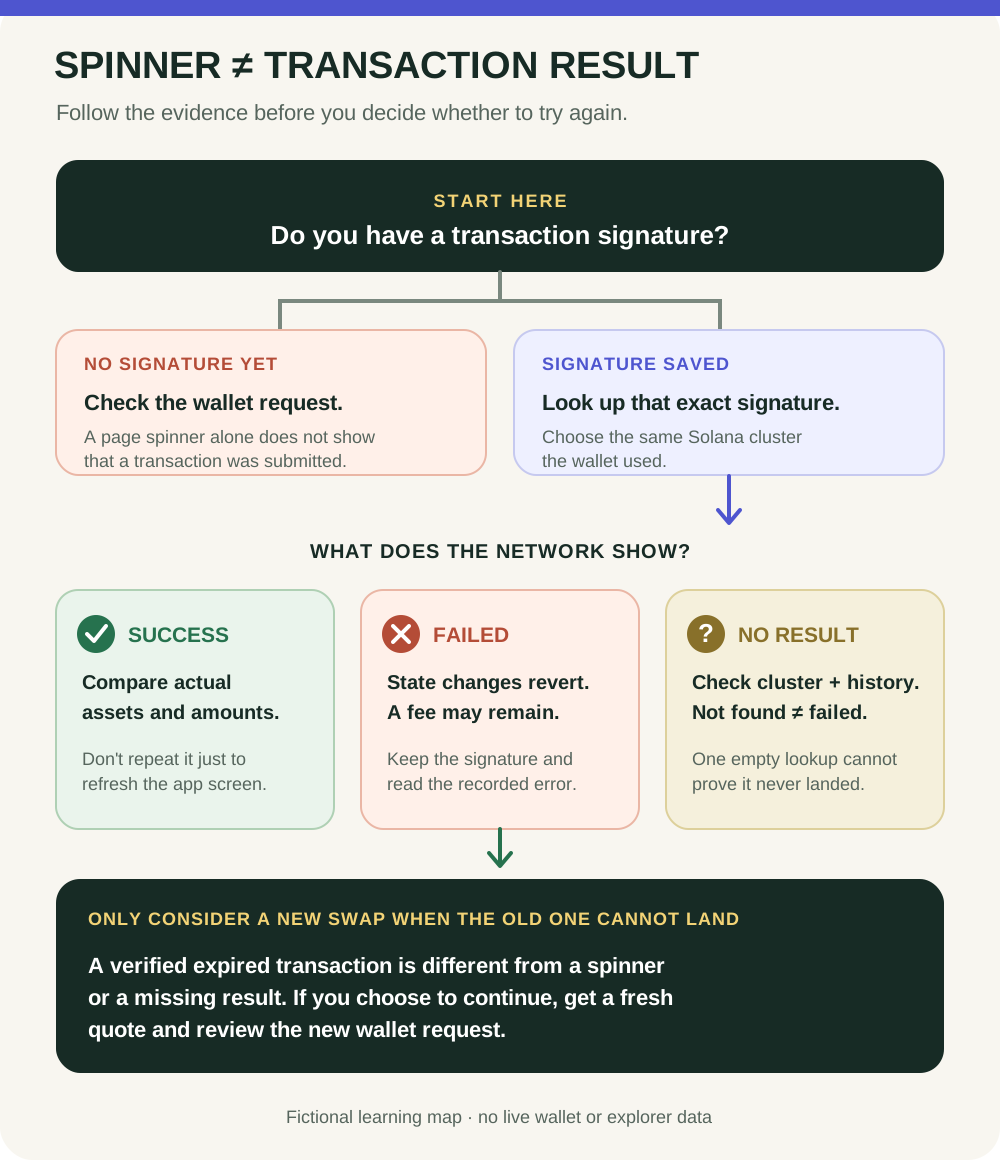
- Signing is not the same as network processing or a confirmed result; check the transaction status separately.
Sort these into connection, authorization, and result-check: sharing a public address, signing a transaction, and looking up its network status.
Connecting a wallet shares an account, not your recovery secrets
When a Solana app requests a wallet connection, the wallet may return the selected account's public address so the app can identify that account and look up public network data. That address is not a private key or recovery phrase, but connecting can associate an address and its public activity with your visit.
A connection is different from authorizing a transaction. Solana's Wallet Standard defines distinct wallet features for connecting, signing a transaction, and signing and sending a transaction. The exact screens and permission behavior vary by wallet and app.
Read the request as three separate decisions
1. Connect: Check the website domain shown by the app and the account/network the wallet will share. Declining is fine; you can still learn without connecting. 2. Sign or approve: If an action asks for a transaction signature, inspect the instructions and the wallet's summary. A Solana transaction can bundle several instructions; an unfamiliar action is a reason to stop. 3. Submit and check: Signing and network processing are separate from simply connecting. A transaction may be submitted, fail, or remain unconfirmed; the wallet's status and a transaction lookup provide different evidence.
Wallets can combine steps or retain permissions. Jupiter's current Extension Wallet settings guide says Auto-Approve can be toggled per dApp in the extension's three-dot menu → Settings → Preferences → Auto Approve. When enabled for Jupiter, transactions there are signed automatically without a manual confirmation prompt, removing the chance to review each one before signing. This setting is specific to Jupiter Wallet Extension; other Solana wallets may behave differently. If you are learning to inspect every request, leave Auto-Approve off while you practice. Interfaces and settings can change.
A no-wallet rehearsal
On paper, imagine a browser at a verified Jupiter page. First, the wallet asks to connect and share a selected public address. Later, a swap flow requests a transaction authorization. Identify which request shares account access, which may authorize an on-chain change, and where you would stop if the domain, asset, network, instructions, or permission is unfamiliar.
You never need to type a recovery phrase or private key into Jupiter, a website, or a support chat to connect a wallet. If a prompt requests one, stop. For a separate practice-only walk-through, read how to read a Jupiter swap quote and how Solana transactions work.
Check your understanding.
You are using Jupiter Wallet Extension with Auto-Approve turned on for Jupiter, but you want to inspect each transaction before it is signed. What should you do?
A correct answer records local learning progress, not a qualification or proof of financial readiness.
Put this lesson in context
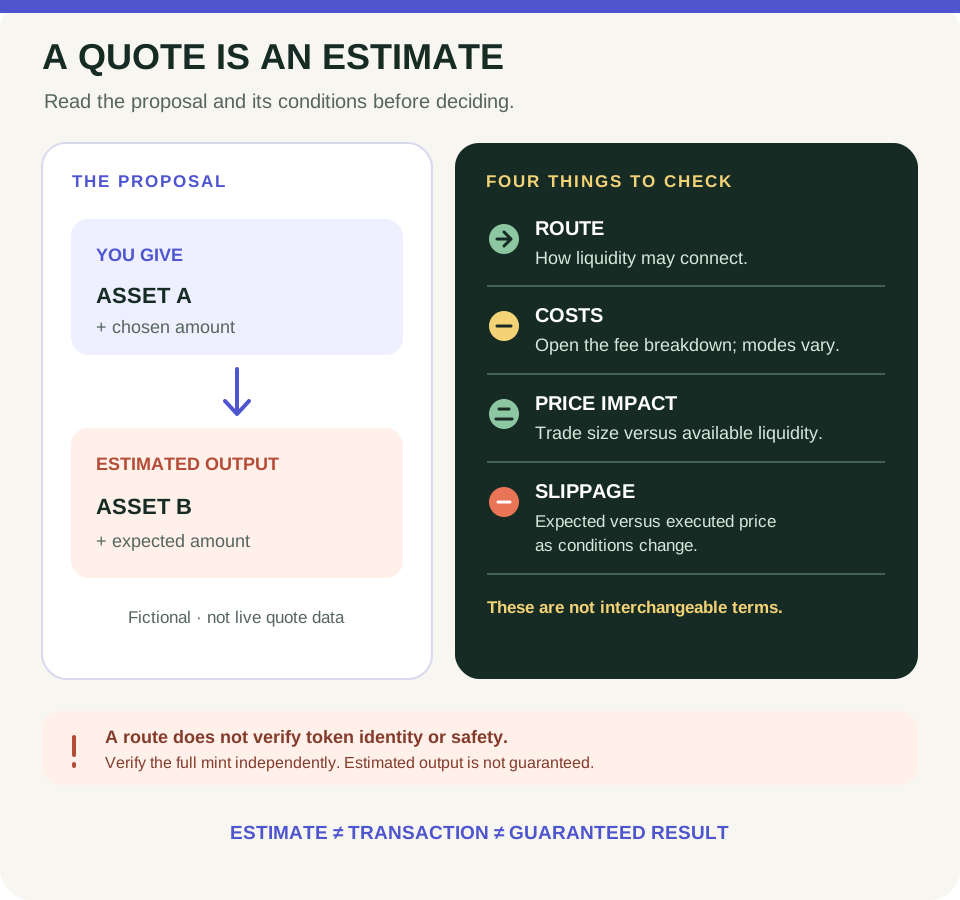
Read the quote before the transaction: follow the route from Jupiter basics to costs and results.
Sources & context
- Jupiter Documentation — Jupiter Wallet ↗Consulted 2026-09-27
- Jupiter Documentation — Jupiter Wallet Settings: Auto-Approve and dApp connections ↗Consulted 2026-10-03
- Jupiter Documentation — Jupiter Spot ↗Consulted 2026-10-03
- Solana documentation — Transactions ↗Consulted 2026-10-11
- Wallet Standard project — Solana Wallet Standard reference wallet ↗Consulted 2026-09-26
Original educational content prepared for this project. Sources provide context, not endorsement or a guarantee that every statement remains current. Rules, product interfaces and availability can change.
Keep learning in Telegram.
Open this published guide in the learning bot. No account connection or wallet is needed.
Join the $STONKB community.
Follow project updates, share useful ideas and meet other builders. You do not need to buy $STONKB to join.
Take what you learned.
Leave the pressure behind.